

Quick Answer: The most effective way to prevent kids from disabling Bark VPN is combining iOS Screen Time restrictions that block “Background App Activities” changes with Bark’s built-in device code protection on Android, while also blocking access to competing VPN apps that bypass monitoring.
Your daughter’s Bark alerts suddenly stopped two weeks ago – no cyberbullying warnings, no concerning social media activity, nothing. After checking her phone, you discovered she’d simply toggled off the VPN that powers Bark’s monitoring. Within seconds, your $168 annual subscription became worthless.
This vulnerability affects thousands of families using Bark parental controls. According to Pew Research Center data, only 39% of parents successfully maintain technology-based monitoring tools, partly because tech-savvy teens exploit simple workarounds. Bark’s VPN-dependent architecture creates a single point of failure – when the VPN connection drops or gets disabled, content filtering and activity monitoring stop completely.
Table of Contents
- Key Takeaways
- Why Bark VPN Keeps Turning Off
- How to Prevent Kids From Disabling Bark VPN on iPhone
- Stop Kids From Turning Off Bark VPN on Android
- Block VPN Removal on Child Phone: Advanced Prevention Tactics
- How Kids Bypass Bark VPN: Recognizing Warning Signs
- Does Bark Notify When VPN Is Disabled?
- Can Kids Disable Bark VPN Without Parents Knowing?
- Alternative Solutions: When Bark’s VPN Vulnerability Becomes Unmanageable
- Final Thoughts on Kids Disabling Bark VPN
- Frequently Asked Questions
- Sources
Key Takeaways
- Bark parental controls rely on VPN connections to monitor content, making VPN disabling the most common bypass method that instantly defeats all protections.
- iOS devices require Screen Time configuration to restrict “Background App Activities” changes, while Android uses Bark’s rotating device code system that locks VPN settings behind passwords.
- Kids typically disable Bark VPN through device Settings > VPN toggle, install competing VPNs to override monitoring, or exploit battery optimization features that kill VPN connections.
- Prevention requires three layers: native OS restrictions (Screen Time/Family Link), Bark’s device code protection, and blocking “unidentifiable traffic” to catch VPN bypass attempts.
- Consider NordVPN or ExpressVPN as alternatives that offer family protection with stronger tamper resistance and network-level controls.
Why Bark VPN Keeps Turning Off
Bark uses a VPN connection to route all internet traffic through its filtering servers. This architecture enables Bark to monitor content and enforce web filters without requiring extensive device permissions – but creates a critical weakness.
Bark VPN Supervision Issues
The VPN-based approach means every protective feature depends on maintaining that VPN connection. When a child turns off Bark VPN, the entire protection system collapses instantly. Parents receive no alerts about the monitoring gap because the VPN disconnect itself often goes unnoticed – especially if kids re-enable it before parents check.

How Kids Turn Off Bark VPN
Tech-savvy children exploit this vulnerability through surprisingly simple methods:
- Direct VPN Toggle: Open Settings > VPN > toggle off Bark VPN connection (takes 3 seconds on both iOS and Android)
- Battery Optimization Manipulation: Enable aggressive battery saving modes that automatically kill VPN background processes
- Network Switching: Switch between WiFi and cellular data repeatedly to disconnect VPN, then leave it off
- Competing VPN Installation: Download free VPNs like Hola or ProtonVPN that override Bark’s VPN with their own encrypted tunnel
- Factory Reset Threat: Threaten or perform factory reset to remove Bark entirely (works on iOS without device code)
According to discussions in Apple Community forums, frustrated parents consistently report that “all kids have to do is turn off the VPN and they are free to do what they want on their phone.” This design flaw affects not just Bark but all VPN-dependent parental control solutions.
How to Prevent Kids From Disabling Bark VPN on iPhone
iOS presents unique challenges because Apple restricts how deeply third-party apps can integrate with system settings. Unlike Android’s device administrator model, iOS apps cannot fully lock down VPN configurations. Parents must leverage Apple’s Screen Time feature to create barriers.
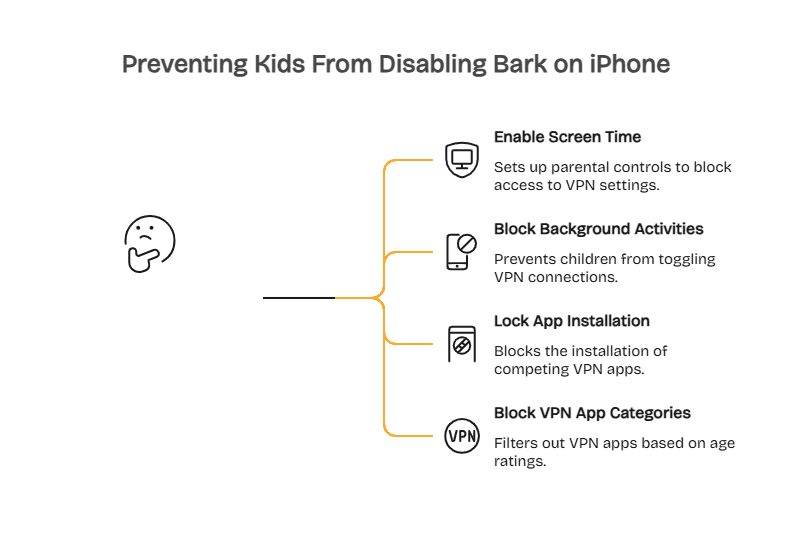
Step 1: Enable Screen Time Restrictions
Screen Time functions as iOS’s native parental control system. Configuring it properly blocks children from accessing VPN settings:
- Open Settings on the child’s iPhone
- Navigate to Screen Time
- Tap Content & Privacy Restrictions
- Enable Content & Privacy Restrictions toggle
- Enter your Screen Time passcode (different from device unlock code)
Step 2: Block Background App Activities
This specific restriction prevents children from toggling VPN connections on or off:
- Within Content & Privacy Restrictions, scroll to ALLOW CHANGES section
- Tap Background App Activities
- Select Don’t Allow
- Also set Cellular Data Changes to Don’t Allow (prevents switching to cellular to bypass WiFi restrictions)
- Set Passcode Changes to Don’t Allow (prevents removing Screen Time controls)
Step 3: Lock Down App Installation
Children may attempt to install competing VPNs to override Bark’s monitoring. Block this workaround:
- In Screen Time > Content & Privacy Restrictions
- Tap iTunes & App Store Purchases
- Set Installing Apps to Don’t Allow
- Set Deleting Apps to Don’t Allow (prevents removing Bark app)
Step 4: Block VPN App Categories
Even with installation restrictions, children might try to download VPN apps before restrictions activate. Use content filtering:
- In Screen Time > Content & Privacy Restrictions
- Tap Content Restrictions > Apps
- Select age rating appropriate for child (4+, 9+, 12+, 17+)
- Note: Most VPN apps are rated 12+ or 17+, so selecting 9+ blocks them
Visit Batten’s parental control comparison guide for iOS-native alternatives that integrate more deeply with Apple’s Family Sharing framework.

Stop Kids From Turning Off Bark VPN on Android
Android’s open architecture provides more robust options for locking down VPN settings. Bark leverages Android’s device administrator permissions to implement stronger protections than possible on iOS.
Bark’s Device Code Protection System
Bark for Android generates rotating device codes that function as passwords for accessing protected settings. This code changes every 5 minutes and appears only in the parent’s Bark dashboard, creating a moving target that prevents unauthorized changes.
What the Device Code Protects:
- VPN settings (cannot toggle off without code)
- Accessibility permissions (required for Bark monitoring)
- App uninstallation (cannot remove Bark Kids app)
- Network settings (cannot switch to data-only mode)
- Multiple user profiles (cannot create unmonitored accounts)
Setup Process for Device Code Protection
- Install latest version of Bark Kids app on child’s Android device
- Complete initial setup and enable Accessibility permissions when prompted
- Wait 5 minutes for uninstall protection to activate
- Attempt to access VPN settings – system will request device code
- Device code appears in parent Bark dashboard under child’s device settings
- Code refreshes every 5 minutes automatically
According to Bark’s support documentation, this system prevents children from disabling the VPN even with full device access. The rotating code makes it impossible to memorize or predict, and attempting access triggers immediate parent notifications.

Secure Bark VPN From Being Turned Off: Additional Android Measures
Beyond Bark’s built-in protections, implement these Android-specific safeguards:
Disable Multiple User Profiles:
- Open Settings on child’s device
- Tap System > Multiple users
- Toggle off Allow multiple users
Children sometimes create secondary user profiles without parental controls, then switch accounts to bypass monitoring entirely. Disabling this feature closes that loophole.
Block VPN App Installation:
- In Google Family Link parent app
- Navigate to child’s device settings
- Tap Google Play controls > Apps & content
- Set app approval to All content requires approval
Every app installation – including free VPN services – now requires parent authorization. Children cannot secretly install ProtonVPN, TunnelBear, or other services to override Bark’s VPN.
Block VPN Removal on Child Phone: Advanced Prevention Tactics
Even with operating system restrictions, determined children find creative workarounds. Advanced prevention requires anticipating bypass methods before they get exploited.
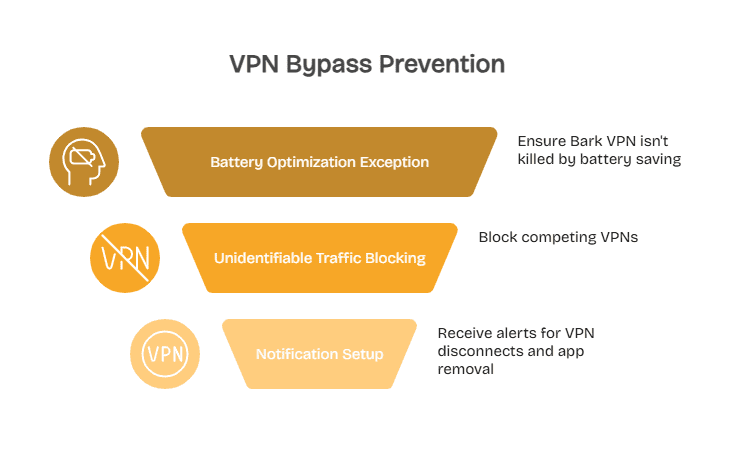
Preventing VPN Bypass Through Battery Optimization
Android’s battery optimization features automatically kill background processes – including VPN connections – to extend battery life. Children exploit this by enabling aggressive power saving modes that terminate Bark’s VPN, then claim “it just stopped working.”
Create Battery Optimization Exception:
- Open Settings on child’s Android device
- Navigate to Apps > Bark Kids
- Tap Battery > Battery optimization
- Select Don’t optimize for Bark Kids
- Repeat for Bark VPN if listed separately
This ensures Android never automatically terminates Bark’s VPN connection, eliminating the most common “accidental” disconnection excuse.
Detecting and Blocking Competing VPNs
Children often install free VPNs like Hola, ProtonVPN, or TunnelBear to create encrypted tunnels that bypass Bark’s monitoring. Bark includes a powerful feature to detect and block these attempts.
Enable Unidentifiable Traffic Blocking:
- Log into Bark parent dashboard
- Navigate to child’s device settings
- Select Web Filtering > Advanced
- Toggle on Block Unidentifiable Traffic
- Save changes
Preventing Bark VPN Being Disabled: Notification Setup
Configure Bark to send immediate alerts when monitoring stops:
- VPN Disconnect Alerts: Bark notifies parents within minutes when VPN connection drops
- App Removal Attempts: Instant notification if child tries to uninstall Bark Kids
- Settings Changes: Alerts when protected settings get accessed (device code required)
- Network Switches: Notifications when device switches between WiFi and cellular repeatedly
Enable all alert types in parent dashboard under Notifications > Device Alerts > Enable All Monitoring Alerts.
How Kids Bypass Bark VPN: Recognizing Warning Signs
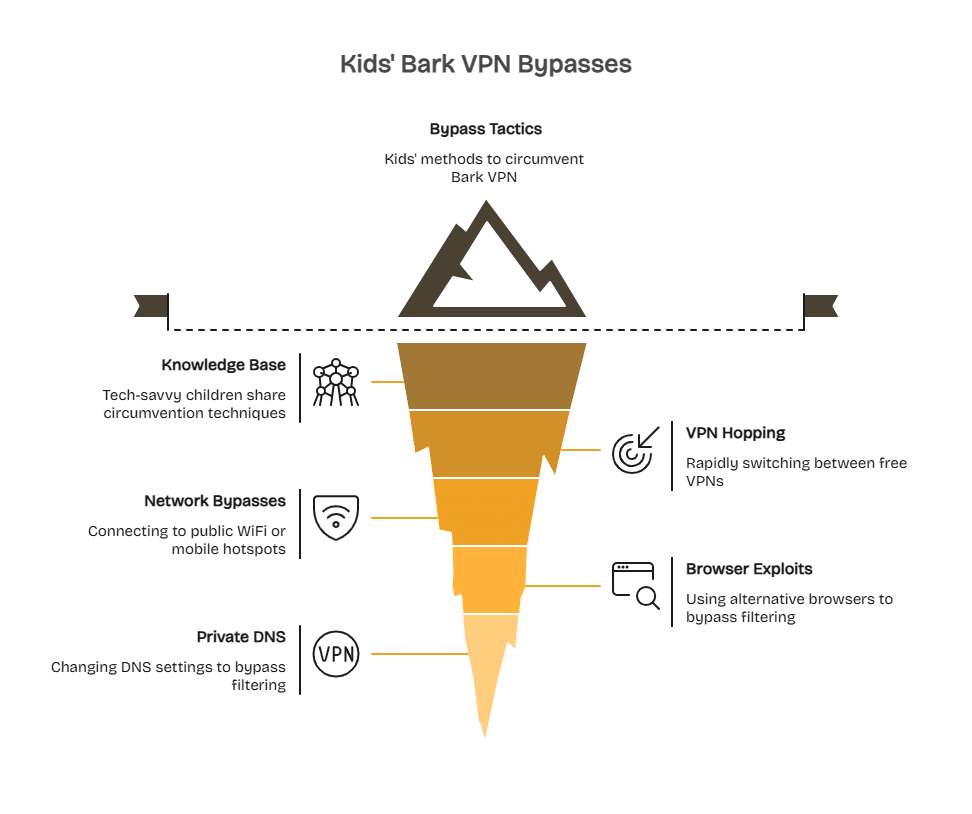
Understanding bypass tactics helps parents spot suspicious behavior before it becomes entrenched. Tech-savvy children share methods through TikTok videos, Reddit threads, and Discord servers – creating a knowledge base of circumvention techniques.
Common Bark VPN Workaround by Kids
Method 1: VPN Hopping Children install multiple free VPNs, then rapidly switch between them. Each VPN change disrupts Bark’s monitoring for 30-60 seconds while the new VPN establishes connection. During these gaps, children quickly access blocked content or send unmonitored messages.
Method 2: Network-Based Bypasses Some children connect to public WiFi networks (school, library, coffee shops) where Bark’s VPN struggles to maintain stable connections. Mobile hotspots from friends’ phones create unmonitored internet access – Bark cannot filter traffic that never touches the child’s device network stack.
Method 3: Browser Exploits Alternative browsers like Firefox Focus or DuckDuckGo sometimes bypass Bark’s web filtering by using independent network stacks. Children access blocked sites through these browsers while Bark monitors Chrome but misses Firefox activity.
Method 4: Private DNS Configuration Advanced users change DNS settings to services like Cloudflare (1.1.1.1) or Google (8.8.8.8), which can bypass some content filtering. On Android, this appears under Settings > Network & Internet > Private DNS.
Does Bark Notify When VPN Is Disabled?
Yes – but with important limitations. Bark sends alerts when its VPN connection drops or gets manually disabled, but notification timing and reliability depend on several factors.
What Happens If a Child Disables Bark VPN
Immediate Actions:
- VPN connection terminates instantly
- Content monitoring stops (no message scanning, no web filtering)
- Activity tracking pauses (no browsing history, no app usage logs)
- Location updates freeze at last known position
Parent Notifications:
- Alert arrives within 5-15 minutes on most devices
- Notification states “Bark monitoring paused on [child’s name]’s device”
- Email and push notification sent to parent app
- Dashboard displays red “Monitoring Inactive” status
Notification Reliability Issues
Bark’s alerts depend on the Bark Kids app remaining installed and functional. If a child uninstalls the app or forces it to stop running, notifications fail to send. On iOS devices without device code protection, children can delete Bark Kids entirely, removing both monitoring and the notification system.
Additionally, notification delays sometimes extend to 30+ minutes during peak usage times or in areas with poor cellular coverage. A tech-savvy child might disable VPN, quickly access blocked content, then re-enable it before the alert reaches parents.
How to Tell If Bark VPN Was Turned Off
Real-Time Check Methods:
- Open Bark parent app > select child’s device > check VPN status indicator
- Review activity timeline for gaps (missing hours indicate monitoring paused)
- Test by attempting to text child a blocked keyword (if no alert triggers, monitoring down)
- Check VPN connection directly on child’s device: Settings > VPN > “Connected” status
Historical Review:
- Bark dashboard shows “Monitoring History” with VPN uptime percentages
- Gaps in browsing history or social media logs indicate disconnected periods
- Location tracking timeline shows where device was during monitoring gaps
For families requiring stronger tamper detection, consider this Bark vs Aura comparison to evaluate alternatives with more robust notification systems.
Can Kids Disable Bark VPN Without Parents Knowing?
On iOS: Yes, if Screen Time restrictions aren’t properly configured. Without Screen Time blocking Background App Activities, children can toggle VPN off/on repeatedly to access blocked content during monitoring gaps.
On Android: Much more difficult with device code protection. Bark’s rotating code system makes unauthorized VPN changes extremely challenging. However, motivated teenagers sometimes find workarounds.
Is Bark VPN Easy for Kids to Bypass?
Bypass difficulty depends entirely on prevention measures parents implement:
| Security Configuration | Bypass Difficulty | Average Time for Tech-Savvy Teen |
| No restrictions configured | Trivial | 10 seconds (toggle VPN off) |
| iOS Screen Time basic setup | Easy | 2-5 minutes (find workarounds) |
| iOS Screen Time comprehensive | Medium | 1-2 hours (research required) |
| Android device code only | Medium-Hard | 2-4 hours (multiple attempts) |
| Android device code + Family Link | Hard | 8+ hours (advanced techniques) |
| Full layered approach (all methods) | Very Hard | Days to weeks |
According to FTC guidance on parental controls, the most effective approach combines technological controls with family media agreements that establish clear expectations and consequences.
Alternative Solutions: When Bark’s VPN Vulnerability Becomes Unmanageable
Some families eventually conclude that Bark’s VPN-dependent architecture creates more problems than it solves. Two situations warrant considering alternatives:
- Chronic VPN Disconnection: If Bark VPN drops multiple times daily despite troubleshooting
- Determined Bypass Attempts: If child repeatedly defeats protections requiring daily intervention
NordVPN: Network-Level Family Protection
NordVPN offers fundamentally different architecture than Bark’s monitoring approach. Rather than app-level content scanning, NordVPN provides family-wide protection through threat blocking and safe browsing features.

NordVPN Family Advantages:
- Threat Protection blocks malware and phishing sites at DNS level (works even if child disables app)
- Meshnet feature creates secure family network across devices
- 6 simultaneous connections cover multiple children’s devices
- CyberSec feature filters ads and tracking automatically
- No content monitoring (privacy-respecting approach for older teens)

Limitations Compared to Bark:
- No message scanning or social media monitoring
- No screen time management or app blocking
- Does not detect cyberbullying or predator behavior
- Requires router-level configuration for tamper-proof implementation
NordVPN suits families transitioning from intensive monitoring to trust-based protection as children mature. It maintains baseline security (malware blocking, privacy protection) without invasive content analysis.
ExpressVPN: Premium Speed with Family-Friendly DNS
ExpressVPN emphasizes connection reliability and includes parental control capabilities through DNS filtering integration.

ExpressVPN at a Glance:
- Price: $6.67/month (annual plan) as of January 2026
- Key Feature: 105 country server network with 99.99% uptime
- Devices: 8 simultaneous connections (covers large families)
- Platforms: Windows, Mac, iOS, Android, Linux, routers
- Best For: Families prioritizing connection stability and router-level protection

ExpressVPN Family Protection:
- MediaStreamer DNS system enables router-level deployment (child cannot disable on individual devices)
- TrustedServer technology ensures no activity logs
- Automatic kill switch prevents unprotected browsing if VPN drops
- Split tunneling allows parents to monitor which apps use VPN protection
Configuration for Parental Control:
- Install ExpressVPN directly on WiFi router (manufacturer-dependent compatibility)
- Configure OpenDNS Family Shield or CleanBrowsing through ExpressVPN’s DNS settings
- All devices connecting to home WiFi automatically receive content filtering
- Children cannot bypass router-level filtering without physical access to router
Final Thoughts on Kids Disabling Bark VPN
Bark can work well, but only if its VPN stays locked on. Without layered protections, kids can shut it down in seconds and create invisible gaps in monitoring. The fix is not one setting. It is a system: tight Screen Time rules on iPhone, device code protection on Android, blocked VPN workarounds, and alerts you actually check. If that still feels like constant whack-a-mole, it may be time to reassess whether a VPN-dependent tool fits your family or if a network-level solution offers better long-term peace of mind.
Protect your family’s digital safety with comprehensive parental controls that balance monitoring and trust – explore Batten’s complete parental control collection featuring Bark alternatives, VPN solutions, and expert guidance for modern families.

Frequently Asked Questions
Can Children Remove Bark VPN Without Triggering Alerts?
On iOS devices without Screen Time restrictions, children can disable Bark VPN in seconds by opening Settings > VPN > toggling off. Bark sends alerts within 5-15 minutes, but tech-savvy teens exploit this delay to quickly access blocked content then re-enable the VPN before notifications arrive. Android’s device code system makes unauthorized removal significantly more difficult, requiring access to rotating codes visible only in parent dashboard.
Does Bark Still Work If I Turn Off The VPN?
No – Bark’s entire monitoring system depends on active VPN connections routing traffic through filtering servers. When Bark VPN gets disabled, content scanning stops immediately, web filtering fails, screen time limits disappear, and activity tracking pauses. Parents receive no browsing history, social media monitoring, or app usage data during VPN disconnection periods.
What Happens When Bark VPN Gets Disabled on Android?
Android devices with device code protection display password prompts when users attempt VPN changes. Children cannot toggle off Bark VPN without entering the rotating device code from parent dashboard. If they somehow bypass protections, Bark sends immediate alerts, VPN status shows “Disconnected” in parent app, and activity timeline displays monitoring gap.
How Do I Prevent VPN Being Disabled on iPhone?
Configure iOS Screen Time by navigating to Settings > Screen Time > Content & Privacy Restrictions > Allow Changes > Background App Activities > Don’t Allow. This prevents children from accessing VPN toggle in Settings. Also block Cellular Data Changes and app installation to prevent workarounds through competing VPN apps.
Can Kids Bypass Bark VPN Using Another VPN App?
Yes – children often install free VPNs like ProtonVPN or TunnelBear to create encrypted tunnels that override Bark’s monitoring. Combat this by blocking VPN app installations through Screen Time (iOS) or Family Link (Android), and enabling “Block Unidentifiable Traffic” in Bark dashboard to detect and block competing VPN connections attempting to bypass filters.
Is Bark VPN Tamper Proof?
No VPN-dependent parental control is completely tamper-proof. Bark implements device codes on Android and partners with Screen Time on iOS to raise difficulty thresholds, but determined children with technical knowledge can find workarounds. Router-level solutions like NordVPN or ExpressVPN deployed at network level provide stronger tamper resistance since children cannot access router admin settings.
Does Bark Notify Parents When Kids Try to Disable VPN?
Bark sends notifications when VPN connections drop, typically within 5-15 minutes of disconnection. However, alerts only function if Bark Kids app remains installed and operational. On iOS, children can uninstall the app entirely (defeating notifications), while Android’s device code protection prevents app removal without parent authorization.
Sources
- “Parents, Teens and Digital Monitoring,” 2016, Pew Research Center, https://www.pewresearch.org/internet/2016/01/07/parents-teens-and-digital-monitoring/
- “How To Use Parental Controls To Keep Your Kid Safer Online,” 2025, Federal Trade Commission, https://consumer.ftc.gov/articles/how-use-parental-controls-keep-your-kid-safer-online
- “How to prevent your kid from deleting Bark,” n.d., Bark Support, https://support.bark.us/hc/en-us/articles/16139404190477
- “Prevent Kids From Changing VPN Settings,” n.d., Apple Community, https://discussions.apple.com/thread/254077970